Why People Search for How to Remove Open to Work LinkedIn Settings
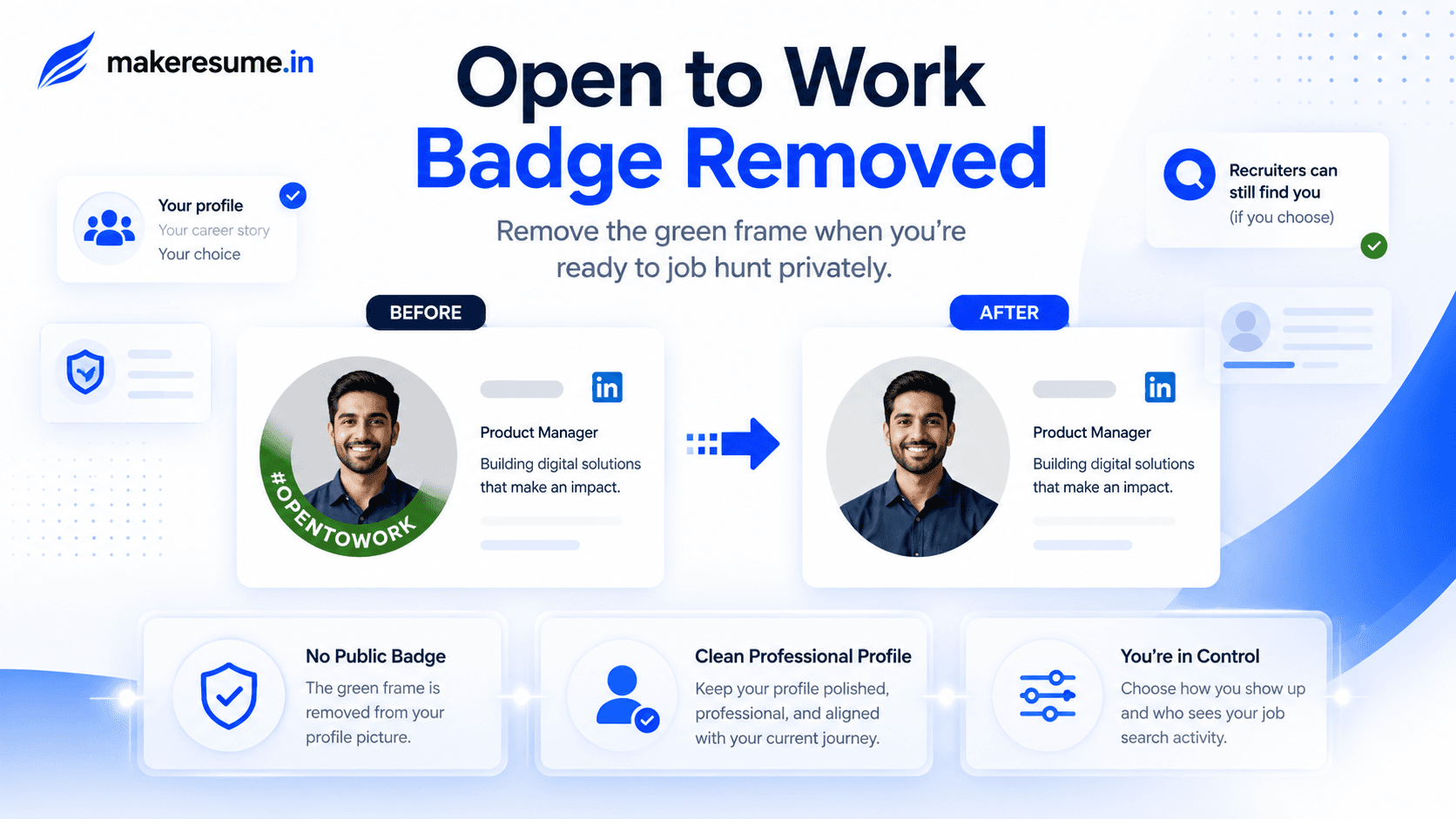
Maybe you landed the job, or maybe you have simply decided you would rather job hunt quietly, and now that green badge on your profile picture feels a little awkward. If you are wondering how to remove open to work LinkedIn status, the good news is it takes less than a minute once you know exactly where to click. The slightly less good news is that LinkedIn buries the option in a spot that is not obvious the first time around.
This guide walks through how to remove open to work LinkedIn settings on both desktop and mobile, plus a middle option a lot of guides skip entirely: staying visible to recruiters while hiding the public badge from everyone else.
There is a funny moment that happens to almost everyone who has used this feature. You turn it on while job hunting, forget about it once you get an offer, and then a former colleague or your new manager spots the green frame on your profile picture. Awkward does not quite cover it.
A friend of mine went through exactly this. She had accepted a new role, started the following Monday, and completely forgot her LinkedIn photo still had that unmistakable green ring around it. Her new team lead saw it during onboarding week and jokingly asked if she was already looking to leave. Lesson learned the hard way: the badge does not disappear on its own just because your situation changed.
That is really why so many people end up searching for how to remove open to work LinkedIn instructions. It is not complicated, but it is also not something LinkedIn puts front and center.
How to Remove Open to Work LinkedIn Status on Desktop
If you are searching for how to remove open to work LinkedIn settings from a browser, here is the fastest route:
Step-by-Step Desktop Instructions
- Head to LinkedIn, log in, and click your profile photo or the "Me" icon at the top of the homepage.
- Select "View Profile."
- Scroll to the "Open to Work" section, which sits just below your name and headline.
- Look for the pencil icon and click it; this opens the edit options for that section.
- In the window that opens, scroll to the bottom and select "Delete from profile" or "Delete."
- Confirm the deletion when prompted.
Once you have worked through how to remove open to work LinkedIn settings on desktop, refresh the page. The green frame and the "Open to Work" box should both be gone. Occasionally the change takes a minute or two to fully sync across LinkedIn servers, so do not panic if it does not vanish the instant you hit confirm.
How to Remove Open to Work LinkedIn Status on Mobile
Wondering how to remove open to work LinkedIn status from your phone instead? The process is nearly identical, just a couple of taps different:
Step-by-Step Mobile App Instructions
- Launch the LinkedIn app and tap your profile photo in the top left corner.
- Tap "View Profile."
- Near the top of your profile, tap the "Open to" button on your introduction card.
- Tap "Finding a new job," or tap the pencil icon if your preferences are already visible.
- Scroll down and select "Delete from profile," then confirm.
If you do not immediately see the "Open to" button, scroll all the way to the top of your profile. LinkedIn shuffles its layout between app updates fairly often, so on older versions of the app you may need to update it first from the App Store or Google Play.
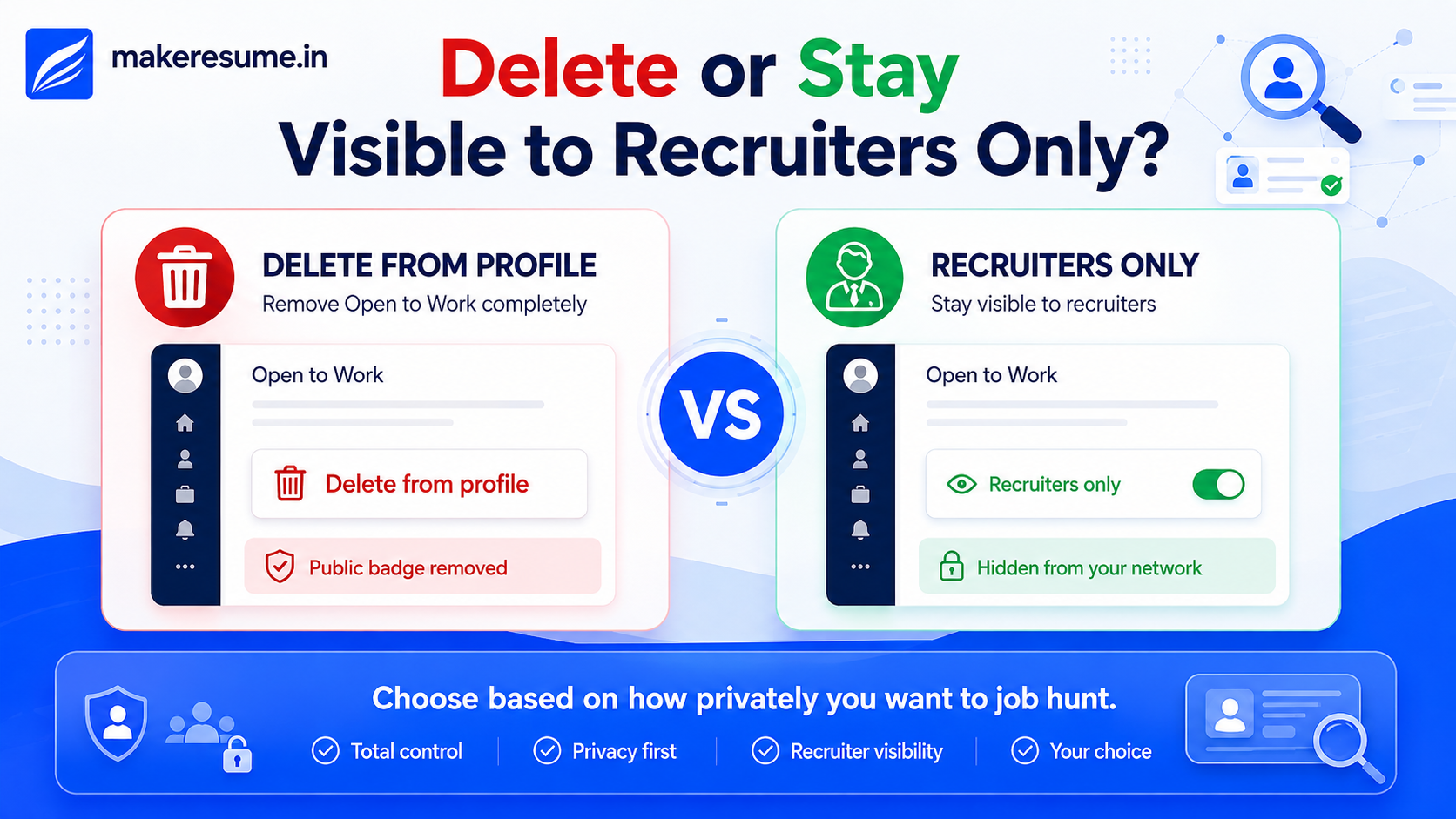
What If You Want to Stay Visible to Recruiters Only?
Here is the part most guides gloss over. It is not really a choice between fully visible and fully gone. If you are still quietly interested in the right offer but do not want your current employer or coworkers spotting the badge, there is a middle setting.
Instead of deleting the feature entirely:
- Repeat the earlier steps up until you reach the edit screen.
- Under "Visibility," choose "Recruiters only" instead of "All LinkedIn members."
- Save your changes.
This approach to how to remove open to work LinkedIn visibility keeps you searchable to recruiters using LinkedIn Recruiter tools, while hiding the public green frame from your network. It is a great middle ground if your job search is more of a quiet exploration than an active, broadcasted one.
Common Issues When Removing Open to Work LinkedIn Settings
A few things trip people up when figuring out how to remove open to work LinkedIn settings, so it is worth covering them before you go looking for a bug that is not actually there:
- The badge is still showing after you deleted it: Give it a few minutes and refresh your browser or clear the app cache. LinkedIn changes do not always update instantly everywhere.
- You cannot find the "Open to Work" section: Make sure you are viewing your own profile, not a cached or older version of the page, and that your app is updated to the latest version.
- You only want to pause, not fully remove it: In that case, switching to "Recruiters only" visibility rather than deleting the feature outright might suit you better.
Wrapping It Up
At the end of the day, knowing how to remove open to work LinkedIn settings comes down to a handful of clicks once you know where to look. Whether you are deleting the feature entirely after landing a role or simply narrowing visibility to recruiters while you keep your options open, the process takes less time than reading this article did. Update your badge, refresh your profile, and let your LinkedIn presence match where you actually are in your career right now.
Ready to make sure the rest of your profile matches your resume just as well? Check your resume for free with MakeResume ATS Checker. It takes less than a minute and shows you exactly what to fix.
FAQs
How long does it take for LinkedIn to remove the Open to Work badge after I delete it?
Usually it is instant, but occasionally it can take a few minutes to update across the platform. Refreshing your browser or clearing your app cache typically resolves it.
After learning how to remove open to work LinkedIn settings, can I turn it back on later if I change my mind?
Yes, you can reactivate it anytime by going through the same steps and entering your job preferences again.
Will recruiters still find me if I remove the green badge but keep the feature on?
Yes, if you set visibility to "Recruiters only," you will still appear in recruiter searches even though the public badge is hidden from your connections.
When following how to remove open to work LinkedIn steps, does it also delete my saved job preferences?
Deleting the feature entirely does clear your saved preferences, like desired job titles and locations. If you just want to hide the badge without losing those preferences, switch the visibility setting instead of deleting.